
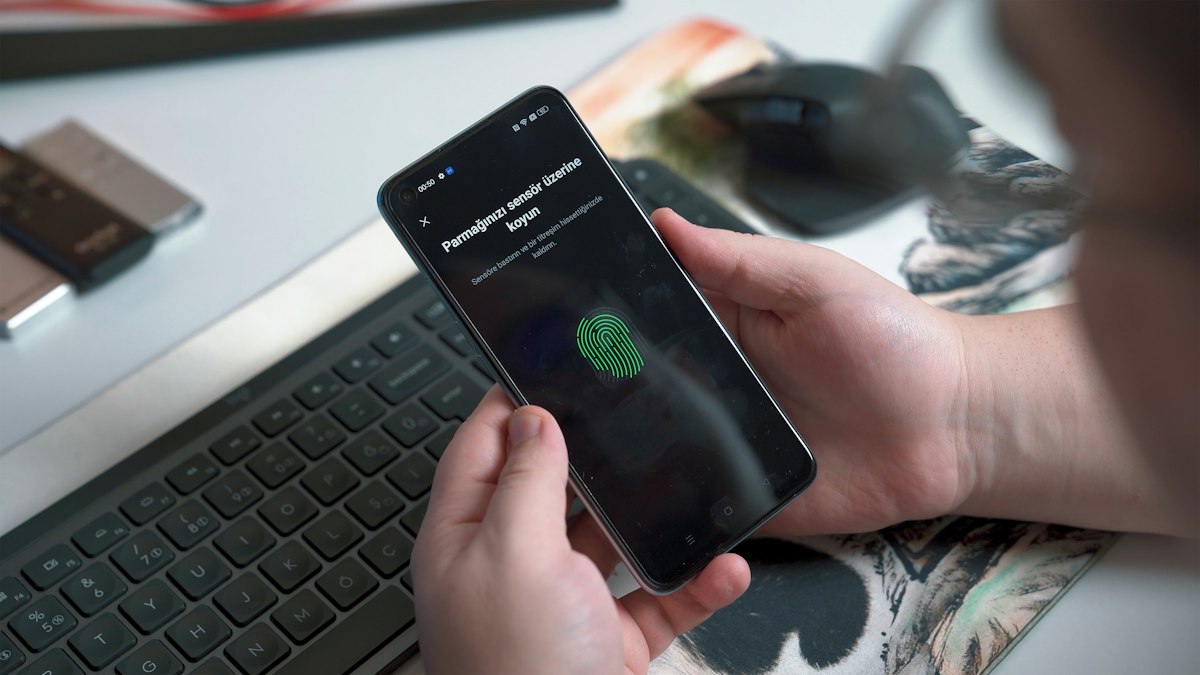
Two-factor authentication stops most account takeovers that start with a stolen password. Here is which accounts to protect first, which method to choose, and how to avoid locking yourself out.
Two-factor authentication (2FA) adds a second check after your password, so a stolen or guessed password is no longer enough to get into your account. It is the single most effective security step most people have not finished. The good news is that it takes about ten minutes per account, and you only need to do it properly once.
This guide covers which accounts to protect first, which second factor to pick, and the step everyone skips: making sure you can still get in if you lose your phone.
Why a password alone is no longer enough
Passwords leak in ways you cannot control. A website you signed up to years ago gets breached, a phishing page copies a real login screen, or a reused password from one service is tried on hundreds of others. With 2FA switched on, an attacker who has your password still needs something only you have, usually your phone or a security key.
The U.S. Cybersecurity and Infrastructure Security Agency describes multi-factor authentication as one of the simplest ways to make an account much harder to compromise, and its guidance on MFA is a good plain-language reference if you need to explain it to family or colleagues.
Start with these five accounts
Do not try to secure everything in one evening. Protect the accounts that unlock other accounts first.
- Your main email account. Password resets for almost every other service go here. Whoever controls your inbox controls everything else.
- Your password manager, if you use one. It holds the keys to the rest.
- Banking and payment apps. Most banks already require a second step; check that it is switched on for web logins too.
- Your phone's cloud account (Apple Account or Google Account). It controls backups, device location and often your saved passwords.
- Work accounts and social media you use to represent a business. A hijacked company page can do real reputational damage.
Choosing a second factor: strongest to weakest
| Method | How it works | Strength |
|---|---|---|
| Passkey or hardware security key | Your device proves who you are with cryptography tied to the real website | Strongest, resists phishing |
| Authenticator app | An app generates a six-digit code that changes every 30 seconds | Strong |
| Push notification | You approve a sign-in prompt on your phone | Good, if you never approve prompts you did not start |
| SMS or voice code | A code is texted or read to you | Better than nothing, vulnerable to SIM swapping |
Passkeys are now offered by many large services. Because a passkey only works on the genuine website it was created for, a convincing fake login page cannot capture it. The FIDO Alliance, which maintains the standard, keeps an overview of how they work. If a service offers passkeys, use them.
Where passkeys are not available, an authenticator app is the best general choice. SMS codes are still worth using when nothing else is offered; they stop the vast majority of automated attacks even if they are not perfect.
Step by step: switching it on
- Install an authenticator app on your phone before you start, so you are not doing it halfway through.
- Open the account's Security or Sign-in and security settings. Look for "Two-step verification", "2-Step Verification" or "Multi-factor authentication".
- Choose the strongest option offered. For an authenticator app, scan the QR code shown on screen, then type the six-digit code to confirm.
- Save the recovery codes. Most services show a list of one-time backup codes. Download or print them now. This is the step that saves you later.
- Add a second method if the service allows it, such as a backup phone number or a second security key.
- Sign out and back in once to confirm everything works.
Do not lock yourself out
The most common 2FA problem is not a hacker. It is a lost, broken or replaced phone. Plan for that before it happens:
- Store recovery codes offline, for example printed and kept with other important documents, or in your password manager's secure notes.
- Use an authenticator app that supports encrypted backup or device transfer, and test the transfer when you change phones.
- Register two methods wherever possible. A spare hardware key in a drawer costs little and removes a lot of stress.
- Keep your recovery email and phone number up to date. An old number you no longer own is a recovery route someone else may control.
Habits that keep 2FA effective
- Never read a code out to someone who calls or messages you, even if they claim to be from your bank. Legitimate support staff do not ask for it.
- If you receive a sign-in prompt you did not start, deny it and change that account's password straight away.
- Review which devices are signed in to your main accounts every few months and remove ones you no longer use.
Two-factor authentication works best alongside unique passwords. If you are still reusing passwords, read our guide to choosing a password manager, and learn the warning signs in how to spot a phishing email.
Quick checklist
- 2FA on email, password manager, bank, phone cloud account and key work accounts
- Passkey or authenticator app chosen where available
- Recovery codes saved somewhere you can reach without your phone
- A second method registered for your most important accounts








0 Comments
No comments yet — be the first to share what you think.