
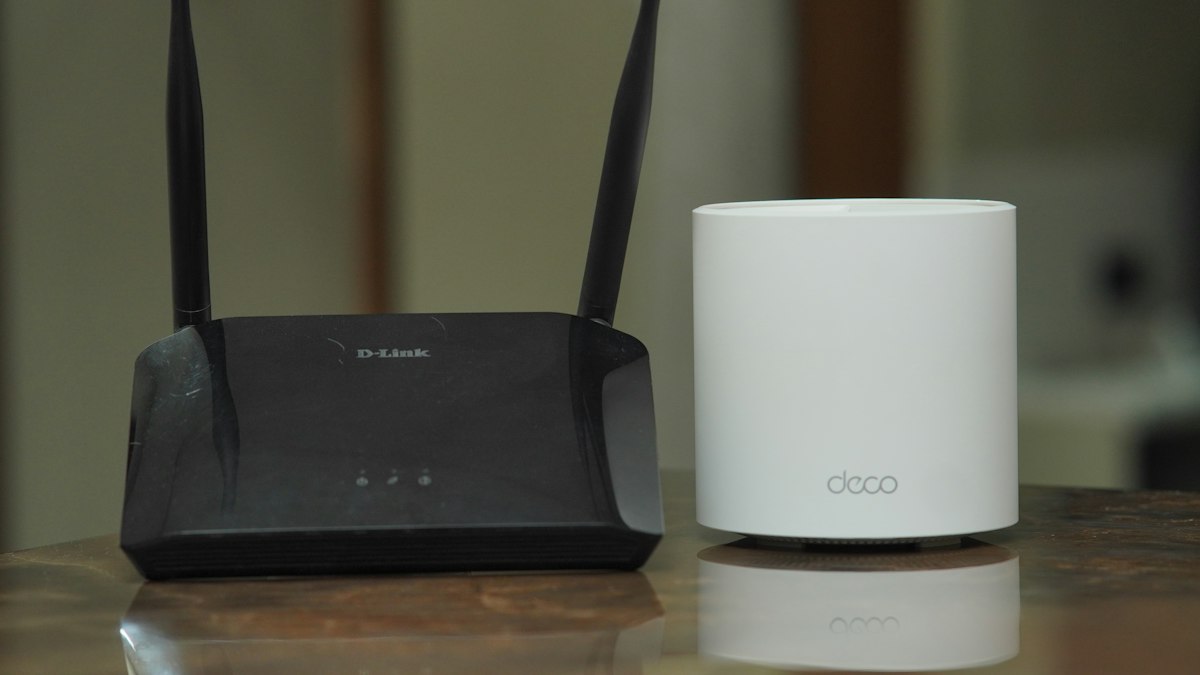
Your router connects every device in your home to the internet, yet many still use default settings. These steps, from changing the admin password to updating firmware, take about 15 minutes.
Your router is the front door to your home network. If someone gains access to it, they can potentially see your traffic, change settings or use your connection. Many routers are still running with factory settings. Fixing that takes about a quarter of an hour.
Before you start
Find your router's admin address, username and default password. They are usually printed on a label on the router or in its manual. Common addresses include 192.168.0.1 and 192.168.1.1. Many internet providers also offer an app to manage their routers.
Use a device connected by cable or to the current Wi-Fi network, and make sure you will not lock yourself out halfway; write down new passwords as you go, ideally in a password manager.
Step 1: Change the admin password
The admin password controls the router's settings, and it is different from your Wi-Fi password. Default admin passwords are often widely known or printed on the device. Change it to a long, unique password.
Step 2: Use strong Wi-Fi encryption
In the wireless security settings, choose WPA3 if all your devices support it, or WPA2/WPA3 mixed mode for compatibility, or WPA2-AES on older routers. Never use WEP or an open network; both are insecure.
Step 3: Set a strong Wi-Fi passphrase
Use at least 15 characters; a passphrase of several random words is long and easy to type into a TV or games console. Change it if it has been shared widely over the years, for example with previous tenants or many guests.
Step 4: Rename the network
Change the network name (SSID) from the default, which often reveals the router model. Do not use your name or address.
Step 5: Update the firmware
Firmware updates fix security vulnerabilities. Check for updates in the admin interface and turn on automatic updates if available. If your router no longer receives updates from the manufacturer or your provider, it is time to replace it.
Step 6: Turn off features you do not need
- WPS (Wi-Fi Protected Setup): the push-button or PIN feature has had security weaknesses. Disable it if you do not use it.
- Remote management: access to the admin page from the internet should be off unless you specifically need it.
- UPnP: lets devices open ports automatically. Some games and apps rely on it; if you do not need it, consider turning it off.
Step 7: Create a guest network
A guest network gives visitors internet access without access to your main devices. It is also a sensible place for smart-home gadgets such as plugs, cameras and speakers, which may receive fewer security updates than phones and laptops.
Step 8: Review connected devices
Look at the list of connected devices in the admin interface. Rename the ones you recognise so you can spot unfamiliar devices in future. If you see something you cannot identify, change your Wi-Fi passphrase.
Bonus: improve speed while you are there
Place the router centrally and in the open, and restart it after updates. Our guide to Wi-Fi 6, 6E and 7 explains when a new router is worth buying.
Checklist
- Admin password changed
- WPA3 or WPA2-AES enabled
- Long Wi-Fi passphrase
- Firmware up to date, auto-update on
- WPS and remote management off
- Guest network for visitors and smart devices
For the rest of your home security, work through our two-factor authentication guide.








0 Comments
No comments yet — be the first to share what you think.