
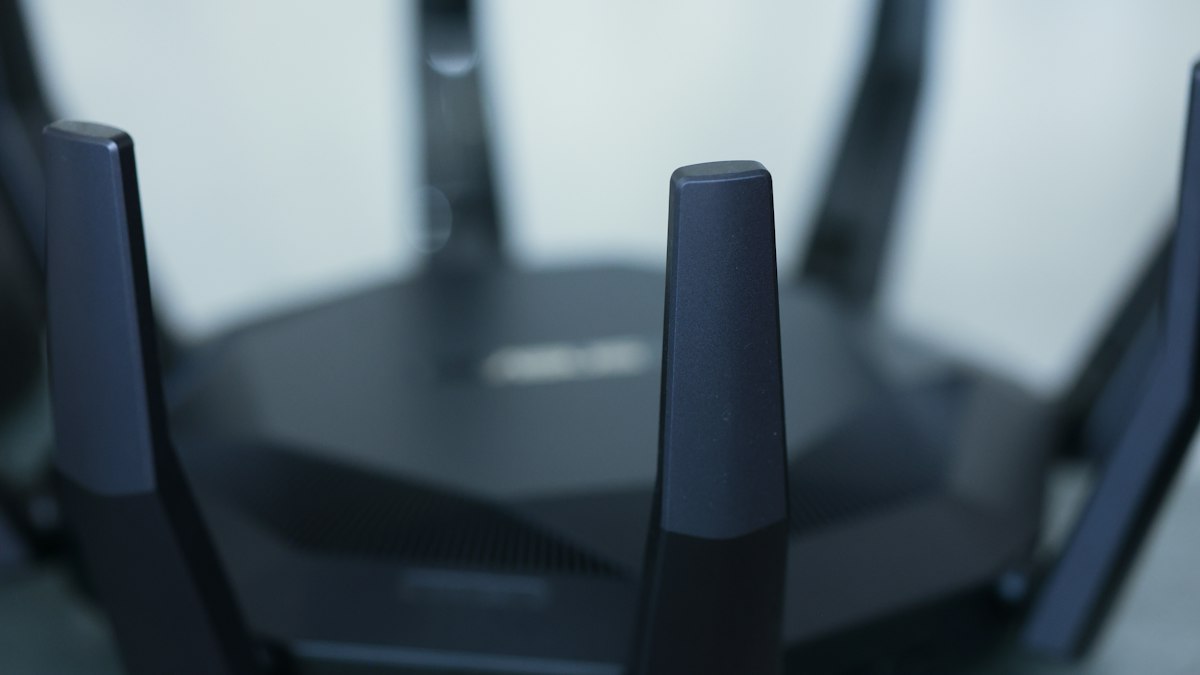
Router boxes are covered in numbers. Here is what Wi-Fi 6, 6E and 7 actually change, which upgrades make a real difference at home, and when a new router will not help at all.
Wi-Fi generations now have simple numbers instead of names like 802.11ac. That helps, but the speed figures printed on router boxes still say very little about what you will experience at home. This guide explains what each generation changes and how to decide whether an upgrade is worth it.
The short version
| Label | Technical name | Bands | What it mainly improves |
|---|---|---|---|
| Wi-Fi 5 | 802.11ac | 5 GHz (plus 2.4 GHz via older standard) | Faster single-device speeds |
| Wi-Fi 6 | 802.11ax | 2.4 and 5 GHz | Efficiency with many devices connected |
| Wi-Fi 6E | 802.11ax | Adds 6 GHz where permitted | Extra, less crowded spectrum |
| Wi-Fi 7 | 802.11be | 2.4, 5 and 6 GHz | Wider channels and multi-link connections |
Wi-Fi 6: built for busy homes
The headline improvement in Wi-Fi 6 is not raw speed but how well the router handles many devices at once. Technologies such as OFDMA let it serve several devices in a single transmission, and Target Wake Time lets phones and smart-home gadgets sleep between check-ins to save battery. If your household has dozens of connected devices, this is where you notice it: fewer slowdowns when everyone is online.
Wi-Fi 6E: a new, quieter lane
Wi-Fi 6E is Wi-Fi 6 extended into the 6 GHz band. That band has much more room and, at least for now, far fewer neighbouring networks competing for it. In a crowded apartment block it can be a noticeable upgrade. The trade-off is range: higher frequencies do not pass through walls and floors as well, so 6 GHz works best in the same room or the next one.
Two practical points: your devices must also support 6E to use the new band, and whether 6 GHz Wi-Fi is permitted, and how much of it, depends on your country's regulator. Check before paying a premium.
Wi-Fi 7: wider channels and multi-link
Wi-Fi 7 adds channels up to 320 MHz wide in the 6 GHz band, denser data encoding, and Multi-Link Operation (MLO), which lets a device use more than one band at the same time. MLO is the interesting part for everyday users because it can make connections steadier and reduce latency, which matters for video calls and gaming. The Wi-Fi Alliance, the industry group that certifies devices, explains the generations on its official site.
Why the box speed is not your speed
A router advertised as "BE19000" or "AX5400" adds up the theoretical maximum of every band together. No single laptop will ever see that number. Your real-world speed is limited by:
- Your internet plan. A new router cannot make a 100 Mbps connection faster than 100 Mbps.
- Your devices. An older phone that supports Wi-Fi 5 will connect using Wi-Fi 5.
- Distance and walls. Concrete, brick, mirrors and metal cabinets absorb signal.
- Interference from neighbouring networks, especially on 2.4 GHz.
When an upgrade is worth it
- Your router is more than five or six years old or no longer receives security updates.
- You have many devices and frequent slowdowns at busy times.
- Your internet plan is faster than your current Wi-Fi can deliver in the rooms where you work.
- You live in a crowded building and have 6E or 7 capable devices.
When a new router will not help
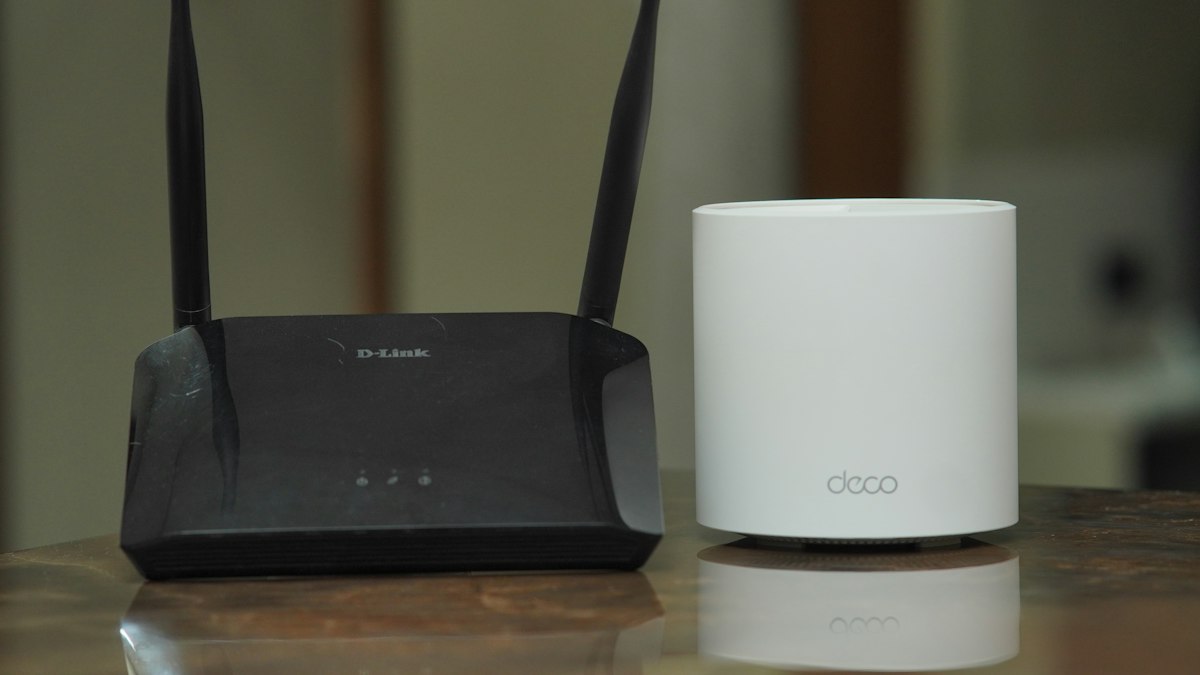
- The problem is coverage in a distant room. A mesh system or a wired access point fixes that better than a more powerful single router.
- The slowdown is your internet provider's line. Test speed with a cable plugged straight into the router; if it is slow there, call your provider.
- One old device is the bottleneck.
Five free fixes to try first
- Move the router to a central, raised, open position, not inside a cupboard.
- Restart it and install firmware updates.
- Use a cable for a desktop computer, TV or games console that sits near the router.
- Give the 2.4 GHz and 5 GHz networks the same name so devices can choose, or separate them if an older device struggles.
- Change the default admin password and make sure WPA3 or WPA2 encryption is on. A secure network is part of a fast one.
Setting up a home office? Pair a reliable network with a solid backup routine so a hardware failure never costs you your work.








0 Comments
No comments yet — be the first to share what you think.