
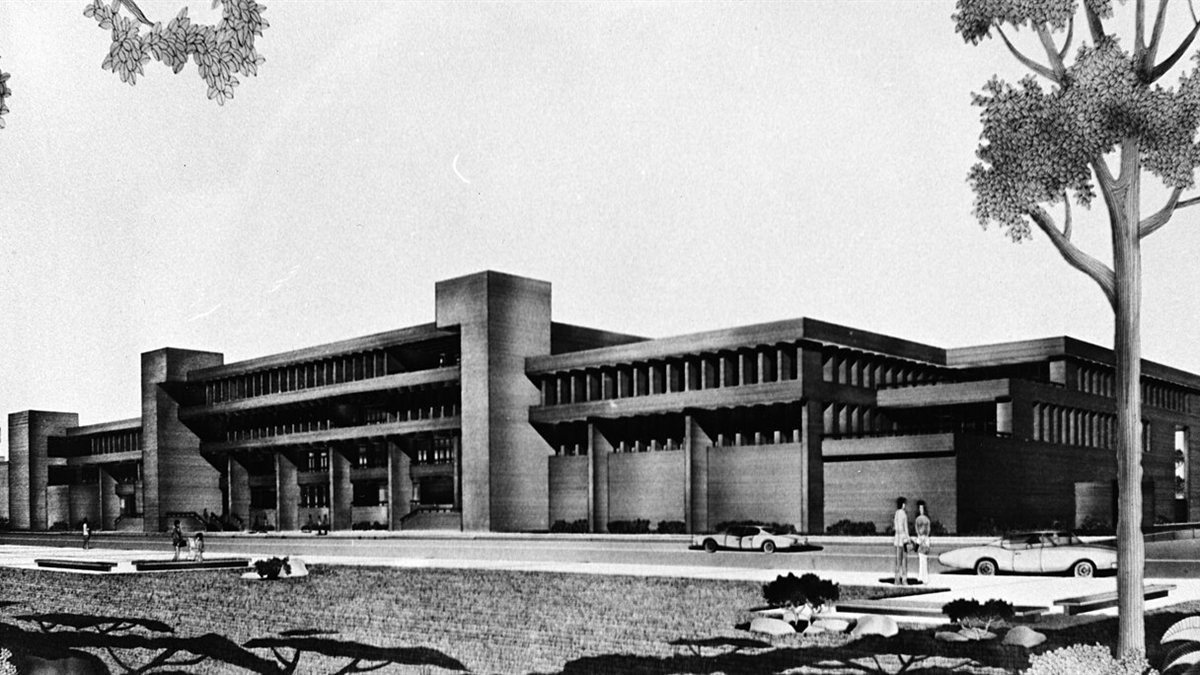
CAD and BIM models are built for construction documents, not for rendering. A short clean-up process covering units, geometry, materials and organisation prevents slow scenes and visual artefacts.
Architectural CAD and BIM models are designed to produce accurate drawings and schedules. When the same model is sent to a renderer, problems appear: flickering surfaces, black faces, missing materials, enormous file sizes and objects floating far from the origin. A methodical clean-up, before or immediately after export, avoids most of them.
1. Check units and scale
Confirm the model's units (millimetres, centimetres, metres, inches) and make sure the rendering software interprets them correctly on import. A model imported at the wrong scale breaks lighting, depth of field, physical cameras and texture sizes. Measure a known object, such as a door, after import.
2. Move the model near the origin
Survey-based CAD files are often positioned at real-world coordinates, millions of units from the origin. Many 3D applications lose precision far from the origin, causing jittering geometry and flickering. Relocate the model close to 0,0,0 while keeping a note of the offset if you need to align it with site data later.
3. Remove what the camera will not see
- Annotation, dimensions and hatches
- Hidden construction layers and internal structure behind finished surfaces
- Furniture and fittings in rooms that will not appear in any view
- Duplicate copies of the same element
Lighter scenes render faster and are easier to work with.
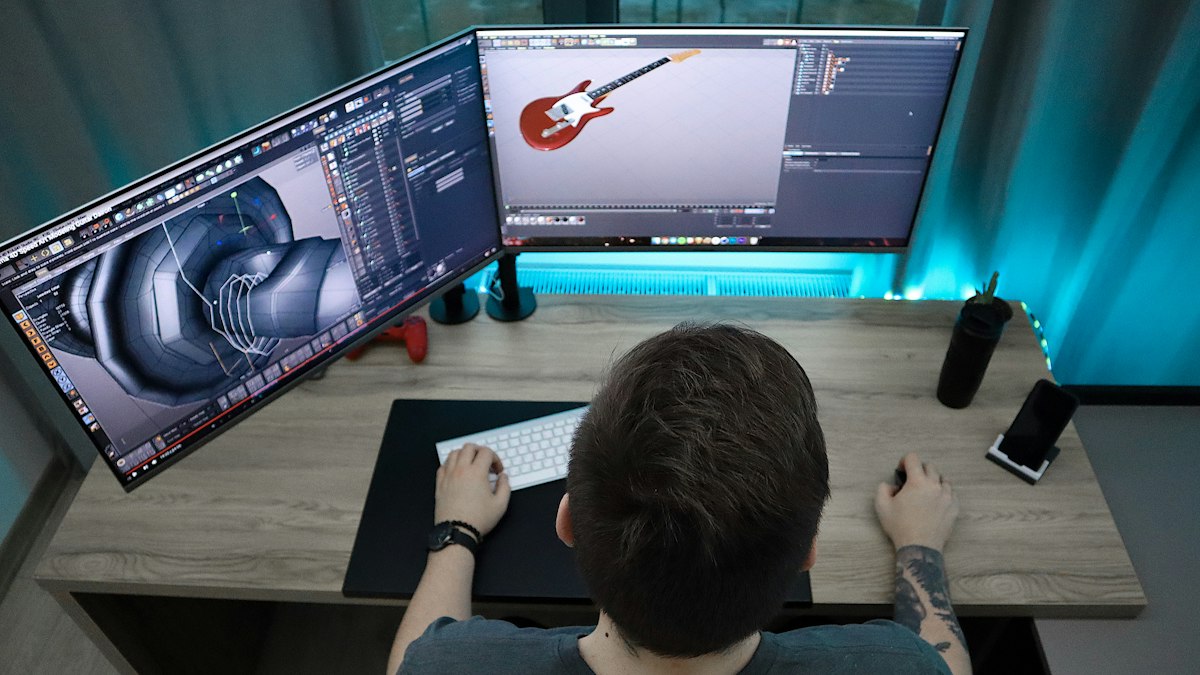
4. Fix geometry problems
- Overlapping faces (z-fighting): two surfaces in the same place flicker or show striped artefacts. Delete one or offset it slightly.
- Flipped normals: faces pointing the wrong way may render black or invisible in some engines. Recalculate or flip them.
- Missing thickness: glass and walls drawn as single planes can cause unrealistic refraction and light leaks. Give glass real thickness where it matters.
- Light leaks at corners where walls, floors and ceilings do not meet properly. Close gaps in rooms with interior views.
- Overly dense curves: very high tessellation on curved objects inflates file size; reduce it where it will not be visible.
5. Organise layers and materials
Group objects logically: walls, floors, glazing, frames, roof, landscaping, furniture. Assign materials consistently by element type so that changing a material once updates every instance. Use clear, consistent material names; "Material_37" will waste everyone's time.
6. Prepare texture coordinates
CAD objects often lack proper UV mapping. For surfaces with textured materials, such as wood, brick and stone, apply box or real-world-scale mapping so textures appear at the correct size and orientation. Check brick bonds and timber grain direction in particular.
7. Use instances and proxies
Repeated objects such as chairs, trees, light fixtures and windows should be instances rather than copies, which saves memory. Heavy assets such as detailed trees can be loaded as proxies that only fully load at render time.
8. Choose the right export format
Common exchange formats include FBX, OBJ, glTF and USD, alongside direct live-link plugins between CAD and rendering software. Test with a small section of the model before exporting everything, and check what survives the transfer: materials, instances, cameras, object names.
9. Keep a link to the source
Designs change. Document your clean-up steps or use live-link workflows so that updates to the architectural model can be re-imported without repeating hours of work.
Checklist
- Units and scale verified
- Model moved near the origin
- Annotations and hidden elements removed
- Overlapping faces and flipped normals fixed
- Glass and walls have thickness where needed
- Layers and materials logically named
- UV mapping at real-world scale
- Repeated objects instanced
- Export tested on a sample
Once the model is clean, focus on materials and lighting. Commissioning the work externally? Read how to brief a visualization studio.










0 Comments
No comments yet — be the first to share what you think.